
Parallels Toolbox 7.1.0.5405 for MacOS Download

Parallels Toolbox 7.1.0.5405 for MacOS is a comprehensive collection of lightweight yet powerful utilities designed to enhance productivity on Mac computers. Developed to streamline routine tasks, it offers dozens of tools in a single, easily accessible interface. Whether you’re a student, professional, content creator, developer, or casual user, Parallels Toolbox simplifies complex tasks with just a few clicks.
Designed for creatives, students, small business owners, multitaskers, IT administrators, and everyone in between, Parallels Toolbox lets you get the most out of your Mac without having to learn complicated system settings.
Parallels Toolbox 7 Key Features:
- Airplane Mode: Use this tool to quickly disable all wireless connections (Wi-Fi, Bluetooth, etc.) on your Mac. To turn it on, simply click the Airplane Mode icon in the menu bar. To turn it off, click the tool again.
- Alarm: Use this tool to alert you at a specific time with a notification and sound. Simply set the time and day of the week (or multiple days of the week), and the alarm will sound as scheduled. Choose a sound, add a name, and receive notifications every week. You can click the “Snooze” button to receive the alert again in 5 minutes.
Use the Archiver - to create compressed archives from your files and save space or easily share multiple files. The Archiver has more features than the built-in system utility.
- You can create password-protected compressed archives so that only those who know the password can access them. You can create an archive with multiple files from different locations simply by launching File from the Toolbox or Finder and dragging files and folders into its window; there’s no need to move or copy files into a single folder.
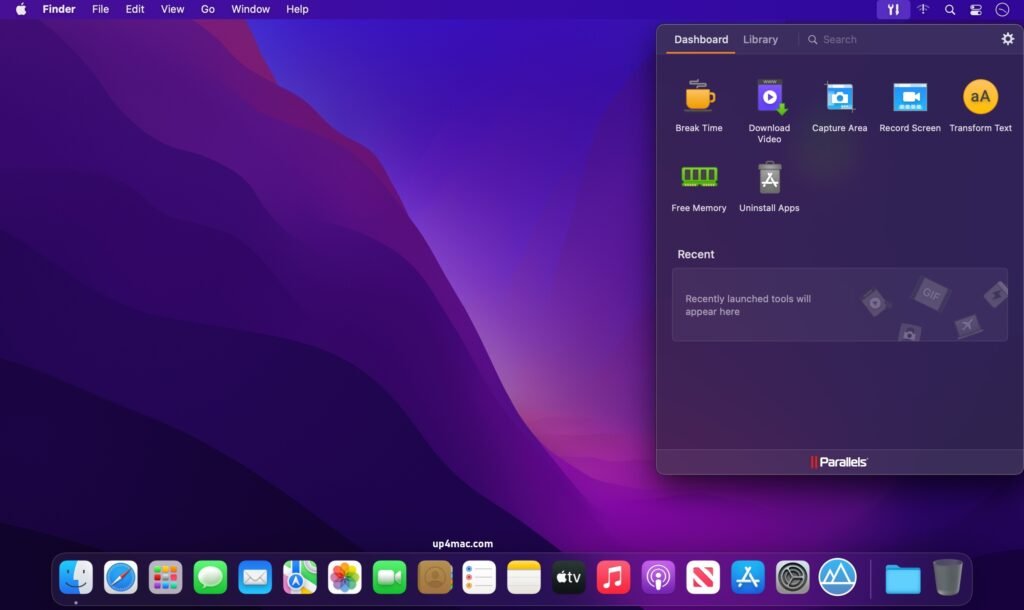
Capture a region, screen, or window. - Use this tool to take a screenshot of a selected region, window, or your entire screen. The image file will appear on your desktop.
- Clean Disk: Use this tool to free up space and optimize your Mac. Clean Disk scans your system and identifies files that can be safely deleted, such as cache, logs, temporary files, and more. The application can also find large and old files on macOS. Clean Disk doesn’t automatically delete files; after scanning your system, you can choose what to delete and what to keep.
- Clipboard History: Use this tool to store text and images you copy to the clipboard for up to 30 days. You can quickly paste them when you need them with just a few clicks. The tool window displays a list of copied items and which applications they were copied from. If you need to quickly find something in your clipboard history, use the search function or add frequently used items to your favorites. If you don’t want to collect copied items from certain apps, you can pause the tool or add them to the exclusion list.
- Video Converter: Use this tool to convert videos and play them in the Videos app on your iPhone or iPad. Simply drag a video, such as your favorite movie or show, to the tool’s icon or window, and it will be converted. The tool can convert virtually any video format and add the converted video to your iTunes library.
- Countdown: Use this tool to set a countdown to a specific date, such as a birthday, deadline, or vacation. Simply enter the day and month, and the Countdown will begin counting down the days, displaying the number of days remaining on the tool’s icons in the Dock and Finder. When the date arrives, the Countdown will display a message. You can stop the countdown by clicking the power button in the app’s main window.
- Do Not Disturb: Use this tool to avoid distractions and focus on the task at hand. When enabled, notifications are silenced and Dock animations are disabled. To disable this mode, click the tool again. All previous settings will be restored. Do Not Disturb mode automatically turns off at 12:00 PM.
- When enabled, this tool prevents your computer from entering sleep mode and dims the screen. This is useful for ensuring that a task is not interrupted. When enabled, all settings that allow your computer to enter sleep mode are disabled. To disable this mode and restore all sleep settings, simply run the tool again.
- Download Audio: Use this tool to download audio files from the internet. You can download audio files individually or an entire playlist at once. You can also download audio from video files. By default, audio files are saved to the “Downloads” folder (you can specify a different folder in the tool’s settings).
- Download video: Use this tool to download videos from the internet. Simply drag a website URL with a video from your browser to the tool’s icon or window, and the video will begin downloading. Many popular video-sharing sites are supported. You can also copy the URL (select it and press Command + C), switch to the Download Video tool, and paste it (Command + V). Video files are saved in your Downloads folder.
- Eject Volumes: Use this tool to eject all mounted volumes on your Desktop, including local removable volumes such as external hard drives and memory cards, network volumes, and even mounted disk images. When you open the tool, it immediately attempts to unmount all volumes, reducing clutter on your Desktop. You can configure which volume types to count in the tool’s Preferences.
- Energy Saver: Use this tool to extend your Mac’s battery life. When Energy Saver mode is enabled, this tool automatically detects when your Mac wakes up in battery mode and enables various power-saving options that are normally hidden in the operating system. If you don’t want the tool to activate automatically, you can disable it in the tool’s Preferences.
- Find Duplicates: Use this tool to scan your Mac for duplicate files. Run the tool and select the directory you want to scan. After the scan is complete, you can preview the detected files and choose which duplicates to keep and which to delete. Deleted files are moved to the Trash.
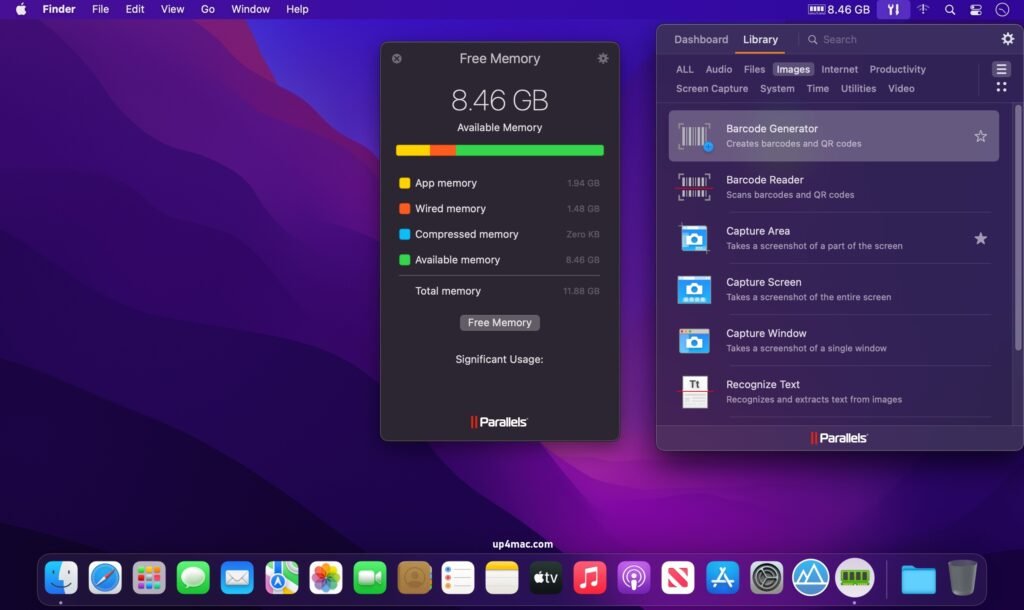
- Free Up Memory: Use this tool to quickly free up idle memory and optimize memory usage on your Mac. It’s recommended to use Free Up Memory before launching a memory-intensive application or game. Drag Free Up Memory to the macOS menu bar to easily check available RAM and free up unused memory with just a few clicks.
- Hidden Files: Use this tool to show or hide hidden files and folders. To show hidden files, click the tool icon. To hide them, click the tool icon again.
- Hide Desktop: Use this tool to hide all files, folders, and other desktop icons. To activate it, simply click the Hide Desktop icon in the Toolbox, Dock, or Finder. To show the icons again, click the tool icon again.
- Hide Menu Icons: Use this tool to hide unused menu icons. In the tool’s preferences, specify which icons you want to hide and which you want to remain visible. When the tool is active, the icons you’ve chosen to hide are not visible. To show them, click the tool’s icon. To hide them, click the tool’s icon again or anywhere else on the screen.
- Launch: Use this tool to open multiple items on your computer, such as applications, documents, folders, links, or other files, at once with a single click. Open the tool and drag the items to its window (or its icon) to create a sequence that will open the next time you click its icon. To edit the set of items, right-click or Ctrl+click the tool and select Preferences.
- Lock Screen: Activate this tool to lock your screen immediately and prevent unauthorized access to your computer. There’s no need to wait for your password-protected screensaver to activate or remember which corner triggers each item: simply click the Lock Screen tool. To unlock your computer and continue, enter your user account password.
- Create GIF: Use this tool to create animated GIFs from videos. Launch the tool, open or drop a video into the window, adjust the start and end points, add text if desired, and click “Create GIF.” The resulting GIF file is saved in the same location as the video.
- Mute Microphone: Use this tool to mute your computer’s microphone and prevent other applications from listening to it without authorization. Simply click “Mute Microphone” in the Toolbox. The built-in microphone is muted, and no application receives a signal. The tool icon indicates that it is active and the microphone is muted. To unmute, click the icon again.
- Presentation Mode: Use this tool to minimize distractions when you need to concentrate or give a presentation. When Presentation Mode is enabled, it blocks notifications and Dock animations (on Mac), temporarily disables the computer’s sleep function, and hides files on the Desktop. Presentation Mode also detects when an external display or projector is connected, so it can be activated automatically. You can disable automatic detection and configure the duration of the Presentation Mode activation.
- Record Area, Screen, or Window: Use these tools to record video of a selected area, a window, or the entire screen. While recording.
you can also download: Find Any File (FAF) 2.6.1 for MacOS
Screenshots:
System Requirements:
- Operating System: macOS 10.14 (Mojave) or later
- Processor: Mac with Intel or Apple Silicon (M1/M2/M3 compatible)
- RAM: 4 GB minimum
- Storage Space: 300 MB of available disk space
- Internet Connection: Required for updates and video downloads
Conclusion:
Parallels Toolbox for macOS 7.1.0.5405 is a versatile and efficient productivity suite designed to simplify everyday tasks on your Mac. With over 40 built-in utilities, it eliminates the need for multiple third-party applications and improves workflow efficiency.
Homepage: https://up4mac.com/
Leave a Reply